Tutorial
Find your OS install location
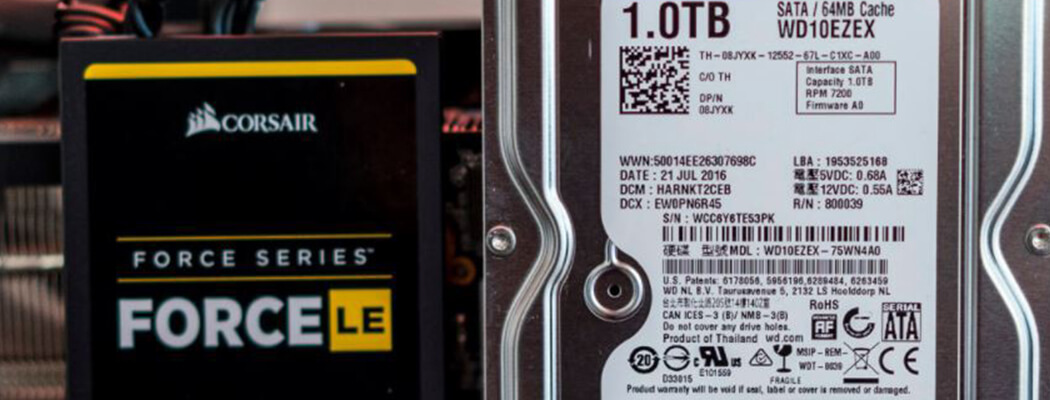
It's important to know if your operating system (OS) is installed on a hard disk drive (HDD) or a solid state drive (SSD). This tutorial is split into two steps, we will firstly check which drive the OS is installed on and secondly find out if that drive is a HDD or SSD.
Finding which drive your OS is installed on
- Click Start and type system protection and hit enter
- A window will pop up, look at the list of drives and find the one which has (System) in the name
- You now know which drive your OS is installed on, make a note of this

Finding whether that drive is HDD or SSD
- Click Start and type run and hit enter
- A window will pop up, in that window type dfrgui, hit enter
- You will see a list of drives, and next to it you will see written Solid state drive or Hard disk drive.
- Find the drive you made a note of before in this list and check if it is SSD or HDD

Written by

Orilation